Learn how to track closed lost reasons in HubSpot and build the reporting that shows exactly why your team is losing deals.
.png?width=46&height=46&name=Untitled%20design%20(29).png) Christian Stroupe
Christian Stroupe
Do you know why every deal you’ve lost in HubSpot was actually lost?
If you don’t, you and your team are flying blind on what’s breaking down in your sales process. Pricing, follow-up, and qualification problems all look the same when nobody records the reason consistently. And you can’t fix a problem you can’t see.
The good news is HubSpot can track this for you in four steps. You’ll map out why you’re losing deals, turn that list into a “Closed Lost Reasoning” dropdown, make it required every time a deal is lost, and build a report that shows the breakdown at a glance. Here’s exactly how to set it up.
Step 1: Map out all the reasons you're currently losing deals
Before you build anything in HubSpot, figure out why deals actually get lost in your sales process. Process first, build second. The list you make here becomes the options your team picks from every time a deal is lost, so it decides what your reporting can show you later.
Start with your last few months of lost deals. Talk to your reps and look for the patterns. If you're stuck, here are some common reasons you can use:
| Reason | When to use it |
| Ghosted | You kept following up, communication went quiet, and the deal is dead. |
| Pricing | You keep sending proposals and keep hearing it's too expensive. |
| Lost to competitor | You're in a competitive market, or your buyers compare options before they buy, and they went with someone else. |
| Went in-house | They decided to handle it with their own team instead of hiring you. Common for service businesses. |
| Unqualified | They were never a fit: wrong size, wrong need, or no budget. |
| Timing | The need is real, just not right now. |
| Other | The deal was lost for a reason that doesn't fit anywhere else on the list. |
You don't have to use these exact reasons. The most powerful setup is the one that's aligned with your unique sales process and the reasons your business is actually losing deals.
Pro tip: Make sure every option is clear and your team understands it. Each one should stand on its own, with no overlap and nothing that could be confused with another option. That's what leads to the cleanest possible reporting.
Step 2: Create a "Closed Lost Reasoning" dropdown deal property
HubSpot's default "Closed Lost Reason" deal property is a free-text box. The problem with a free-text box is that reps either skip it or enter something different every time. What ends up happening is you can't accurately track why deals are being lost in your sales process.
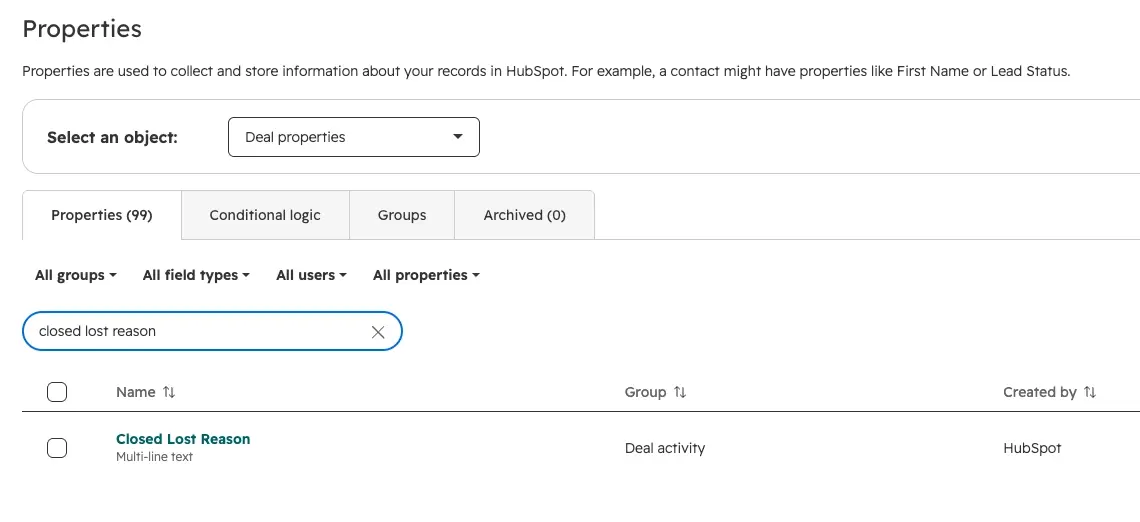
Out of the box, “Closed Lost Reason” is free text, so every rep can answer it differently.
The fix is a new deal property built from the reasons you mapped out in Step 1, so your team has to select from a fixed list every time a deal is lost.
Here's how to do this in HubSpot:
- Click the settings icon in the top navigation bar.
- In the left sidebar, under Data Management, click Properties.
- Click the Select an object dropdown and choose Deal properties.
- Click Create property.
- Name the property "Closed Lost Reasoning".
- Click the Field type dropdown and choose Dropdown select.
- Enter the reasons you mapped out in Step 1 as your dropdown options.
- Click Create property.
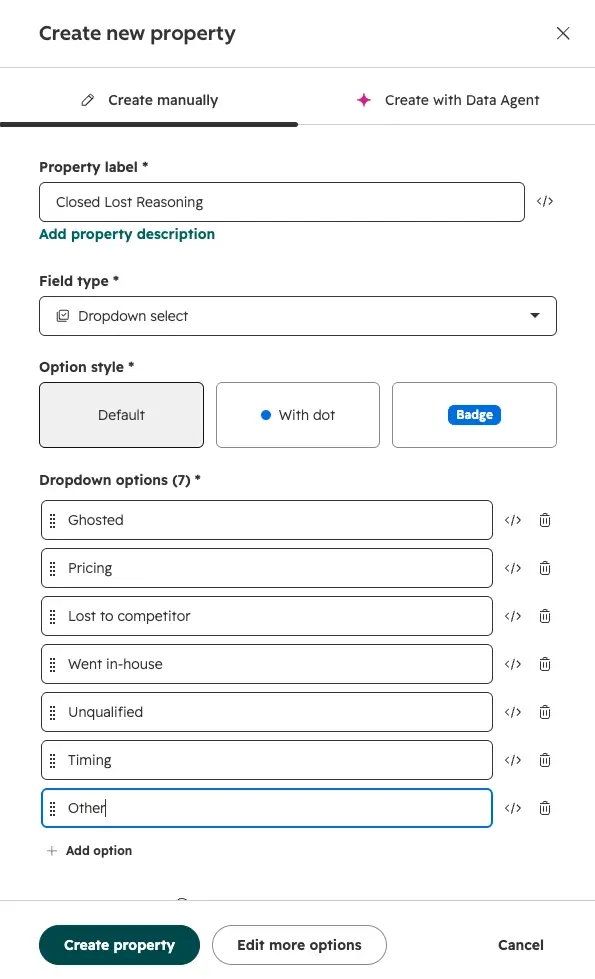
Your mapped-out reasons become the only options reps can choose.
Step 3: Make "Closed Lost Reasoning" required when a deal moves to Closed Lost
A new property only helps if your team actually fills it in. Right now, anyone can drag a deal to Closed Lost without entering a reason, so you're still not collecting the data every time.
The fix is a conditional stage rule. It makes "Closed Lost Reasoning" required whenever someone moves a deal to Closed Lost. If they don't pick a reason, the deal doesn't move.
Here's how to do this in HubSpot:
- Click the settings icon in the top navigation bar.
- In the left sidebar, under Data Management, click Objects.
- Click the Select an object dropdown and choose Deals.
- Click the Pipelines tab and select the pipeline you want to update.
- In the Closed Lost row, hover over the Conditional logic rules column and click Add rule.
- Make sure the rule reads Deal stage is equal to Closed Lost.
- Under Dependent properties, click Add property and select "Closed Lost Reasoning."
- Check the Required box.
- Click Save logic.
Now when someone drags a deal to Closed Lost, HubSpot asks for the reason first. If they hit cancel, the deal stays where it was. If you run more than one pipeline, repeat this for each one.
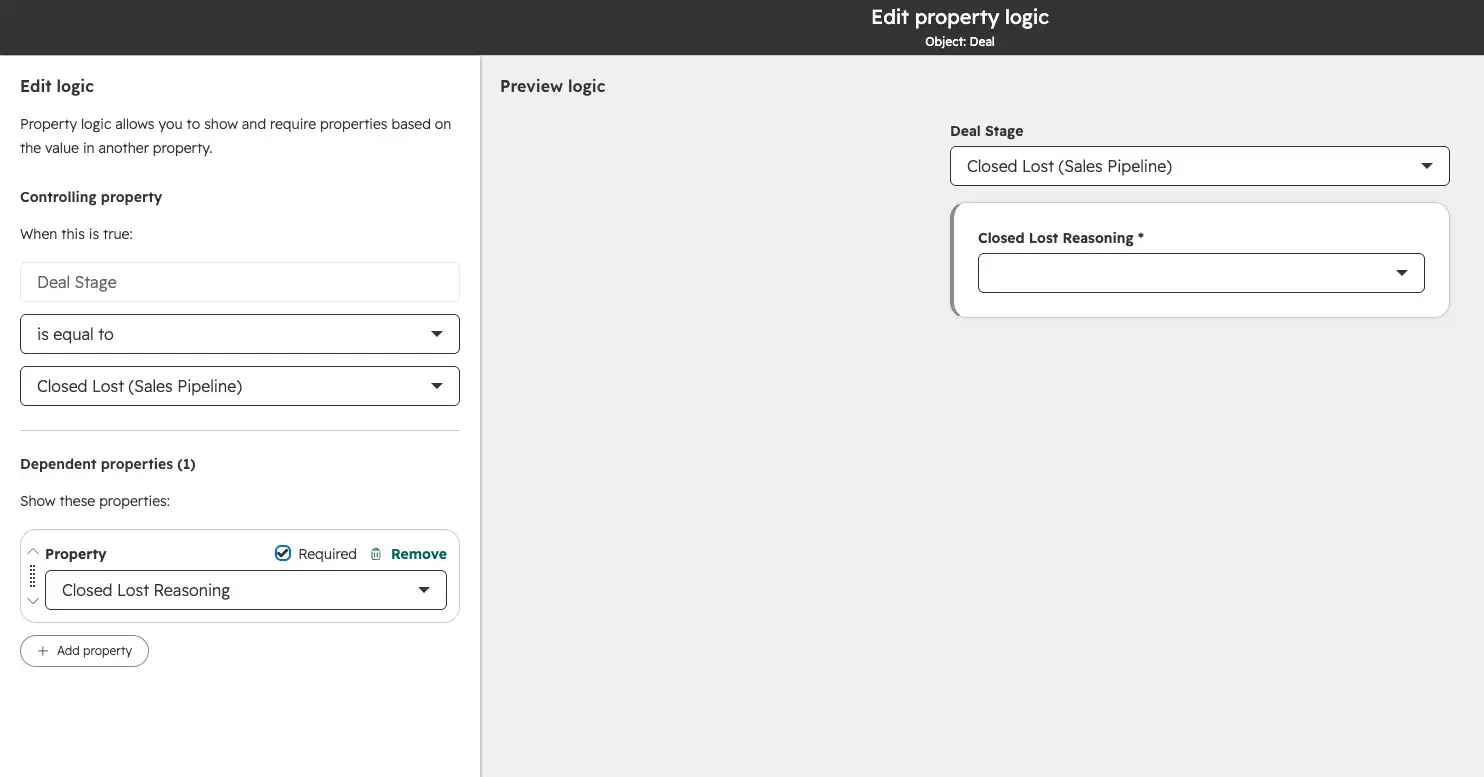
The Required checkbox is what makes the reason mandatory.
Pro tip: Keep the default "Closed Lost Reason" property as an optional description field. In the same rule, click Add property again, select "Closed Lost Reason," and leave Required unchecked. Reps have to pick a reason from the dropdown and can add details if they want. You can also use conditional property logic to make "Closed Lost Reason" required when a rep selects Other, so every Other comes with an explanation.
Step 4: Build a closed lost reasons report
With a reason on every lost deal, the last step is making it easy to see. A donut chart shows the breakdown at a glance, so leadership doesn't have to dig through deal records.
Here's how to do this in HubSpot:
- In the top navigation, go to Reporting, then Reports.
- Click Create report.
- Choose Custom report.
- Select Deals and click Next.
- Choose Donut as the chart type.
- Add a filter: Pipeline is any of [your pipeline].
- Add a filter: "Closed Lost Reasoning" is known.
- Under Configure, set Values to Count of deals.
- Set Break down by to "Closed Lost Reasoning."
- Name the report "Closed Lost Reasoning," save it, and add it to the dashboard leadership already uses.
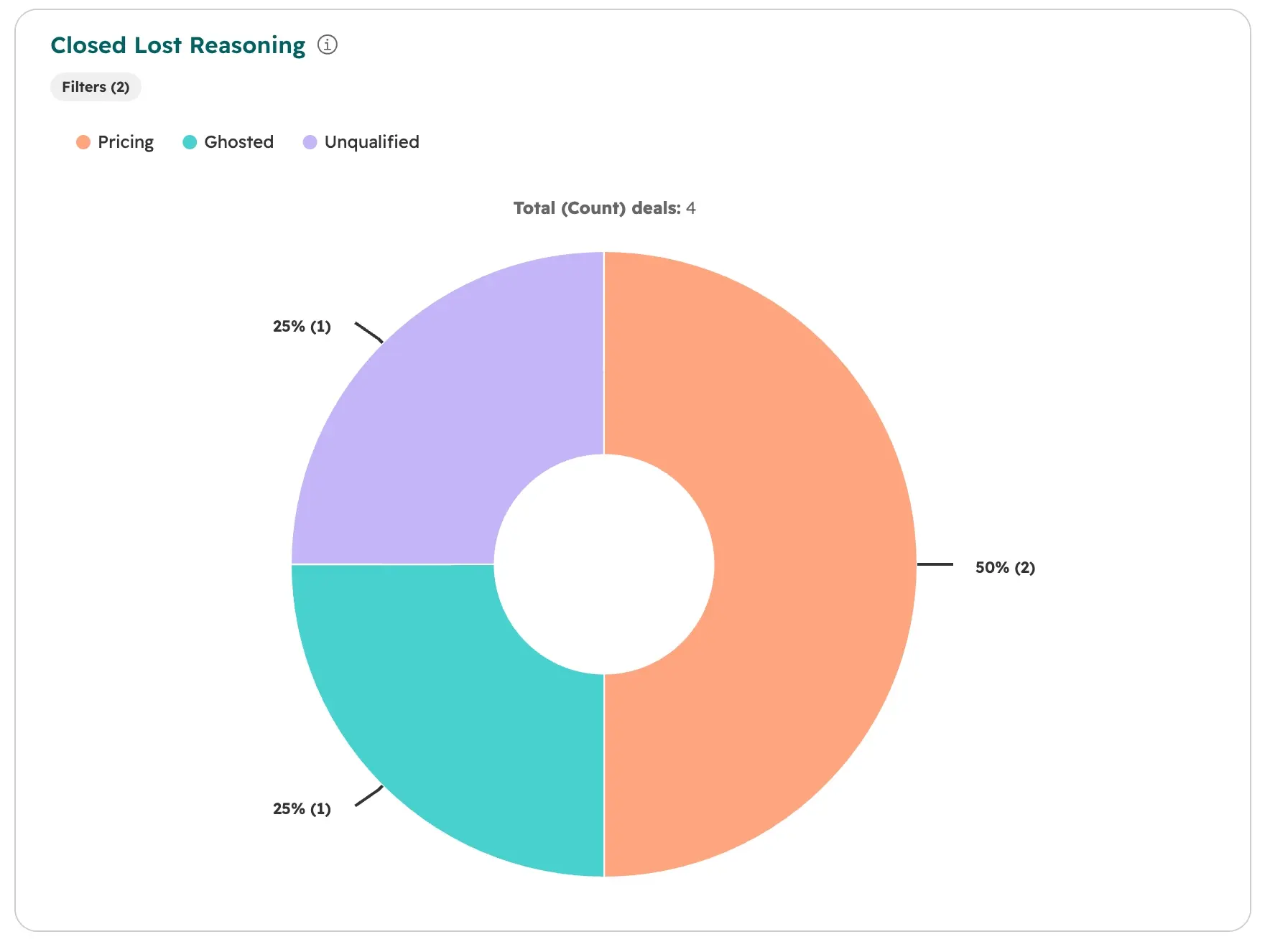
One chart answers the question: why are we losing deals?
Pro tip: Add a Deal stage is Closed Lost filter too, so deals that get reopened drop out. Then filter Close date to this quarter or a rolling 90 days. Without a date range, the chart covers all time, and you can't tell if a reason is getting worse.
What this reporting unlocks
The report shows you where to look. Each reason points to a different part of your sales process:
-
Too many deals Unqualified? Look at your qualification process.
-
Too many deals lost to Pricing? Look at your proposals.
-
Too many deals Ghosted? Look at your follow-up.
Check it regularly, and you'll be improving your sales process based on what's actually happening instead of gut feel.
Common gotchas
-
Plan requirements: The dropdown property and the stage rule work on any HubSpot plan. The donut report is a custom report, and making "Closed Lost Reason" required when Other is selected uses conditional property logic. Both need a Professional or Enterprise subscription.
-
Historical deals start blank: The rule only applies going forward. Deals lost before you set it up won't have a reason, so your report starts nearly empty. Backfill recent losses to get a baseline. If you have years of free-text reasons to move into the new dropdown, you can always reach out to us for help.
-
Automation skips the prompt: The requirement only kicks in when someone moves a deal by hand. Workflows, imports, and APIs don't trigger it, so any automation that closes deals has to set the reason itself.
Frequently Asked Questions
What is a closed lost reason in HubSpot?
A closed lost reason is the explanation for why a deal ended up in the Closed Lost stage, like pricing, the prospect going quiet, or a poor fit. HubSpot includes a default "Closed Lost Reason" deal property, but it's free text. To report on it accurately, you need a dropdown of fixed reasons your team selects every time.
How do I make a property required when a deal moves to Closed Lost?
Use a conditional stage rule. In Settings, go to Data Management > Objects > Deals, open the Pipelines tab, and select your pipeline. In the Closed Lost row, click Add rule, add your property under Dependent properties, check Required, and click Save logic. Reps then can't move a deal to Closed Lost without filling it in.
Which HubSpot plan do I need to track closed lost reasons?
You can create the dropdown property and the required stage rule on any HubSpot plan. The donut report is a custom report, which requires a Professional or Enterprise subscription.
What closed lost reasons should I include?
Start by mapping out why deals actually get lost in your sales process. If you get stuck, some common reasons include: pricing, ghosted (or went quiet), lost to competitor, unqualified, or timing. Keep it between five to eight reasons that don't overlap, and include "other" so reps never have to pick a reason that isn't true.
Will this capture reasons for deals that were already closed lost?
No. The required prompt only shows up when a deal moves to Closed Lost after you save the rule. Deals lost before that stay blank and won't appear in a report filtered on "Closed Lost Reasoning" is known. You will need to backfill past deals that were lost.
.png?width=180&height=180&name=Untitled%20design%20(29).png)