To add conditional questions to HubSpot forms, map your questions, create contact properties, add them to the form, and set conditional logic.
.png?width=46&height=46&name=Untitled%20design%20(29).png) Christian Stroupe
Christian Stroupe

If your HubSpot form needs to ask different follow-up questions depending on how someone answers a previous question, conditional logic in the form editor is how you set that up.
HubSpot's conditional logic inside the form editor handles all the different follow-up questions you need to ask inside a single form. It shows only the relevant follow-up questions based on certain answers, while hiding the questions that don't apply.
This post walks through how to add conditional questions to HubSpot forms step-by-step.
How do you plan conditional questions for a HubSpot form?
To plan your conditional questions for a HubSpot form, follow these three steps:
- Pick your trigger question.
- Set its answer options.
- Write the follow-up questions for each option.
Do this before you open HubSpot. The properties, the form layout, and the logic rules are all built off this map, and doing it first makes the build a lot easier later on.
Step 1: Pick your trigger question
The trigger question is the question whose answer decides which follow-up questions appear. Make it a property with fixed options, like a dropdown select or radio select, so every answer is a set value a logic rule can match.
Step 2: Set its answer options
List out every answer option a visitor can select for the trigger question. Each answer option gets its own set of follow-up questions, so the options you list here decide which follow-up questions each visitor will see.
Here's what it looks like to map out a trigger question, its property type, and its answer options in a table:
| Trigger question | Property type | Options |
|---|---|---|
| Your trigger question | A property with fixed options (e.g., dropdown select, radio select) | Option A, Option B, Option C |
Step 3: Write the follow-up questions for each option
Next, write the follow-up questions for each answer option. In this step, you map out all the follow-up questions you want to ask a visitor based on how they answer the trigger question, with a separate list for each answer option.
Here's what it looks like to map out the follow-up questions for each answer option, with one table for each option:
| Option A | ||
|---|---|---|
| Follow-up question | Property type | Options |
| Follow-up 1 | Property type | Options, if any |
| Follow-up 2 | Property type | Options, if any |
| Option B | ||
|---|---|---|
| Follow-up question | Property type | Options |
| Follow-up 3 | Property type | Options, if any |
| Follow-up 4 | Property type | Options, if any |
| Option C | ||
|---|---|---|
| Follow-up question | Property type | Options |
| Follow-up 5 | Property type | Options, if any |
Here's a practical example of what this looks like. Most service businesses have a contact form on their website that asks for a first name, last name, email, and a general message like "How can we help?" That form asks every visitor the same questions, even though someone looking for a one-time project and someone looking for ongoing monthly services need to share very different information.
In this example, the contact form gets one new trigger question, "What Are You Looking For?", with three answer options: One-time project, Monthly services, and Not sure yet. Each answer option then gets its own follow-up questions, so every visitor only answers the questions that are relevant to what they need.
Here's how the trigger question for the contact form is mapped out:
| Trigger question | Property type | Options |
|---|---|---|
| "What Are You Looking For?" | Dropdown select | One-time project, Monthly services, Not sure yet |
And here are the follow-up questions mapped out for each of its three answer options:
| One-time project | ||
|---|---|---|
| Follow-up question | Property type | Options |
| "Project Timeline" | Dropdown select | Set timeline ranges |
| "Project Budget" | Dropdown select | Set budget ranges |
| "Project Description" | Multi-line text | N/A |
| Monthly services | ||
|---|---|---|
| Follow-up question | Property type | Options |
| "Which Monthly Services" | Multiple checkboxes | Your list of monthly services |
| "Monthly Budget" | Dropdown select | Set monthly budget ranges |
| Not sure yet | ||
|---|---|---|
| Follow-up question | Property type | Options |
| "How Can We Help?" | Multi-line text | N/A |
Pro tip: Don't skip mapping out the property type for each question. Deciding each property type during the mapping process makes everything easier to build once you get into HubSpot.
If your form has more than one trigger question, repeat this mapping process for each trigger question and its follow-up questions.
How do you create the form properties in HubSpot?
To create the form properties in HubSpot, create every question from your map as a contact or company property, starting with the trigger question. In HubSpot, every question on a form is connected to a property, which is the field on the contact or company record where the visitor's answer is saved. That means each question needs its own property before you can add it to the form. Use contact properties for questions about the person filling out the form, and company properties for questions about their business.
Once your questions are mapped out, follow these two steps to create them as properties in HubSpot:
- Create your trigger questions as properties.
- Create a property for each follow-up question.
Step 1: Create your trigger questions as properties
Start with your trigger questions, because every follow-up question on the form depends on how a visitor answers them. Create each trigger question as a property with fixed options, and add each answer option from your map as one of those options.
Here's how to do this in HubSpot:
- Click the settings icon in the top navigation bar.
- In the left sidebar, under Data Management, click Properties.
- Click the Select an object dropdown menu and select Contact properties, or Company properties if the question is about the company.
- Click Create property.
- In the Property label field, enter your trigger question.
- Click the Field type dropdown menu and select a field type with fixed options, such as Dropdown select or Radio select.
- Add each answer option from your map as an option.
- Click Create property.
- Repeat these steps for every trigger question on your map.
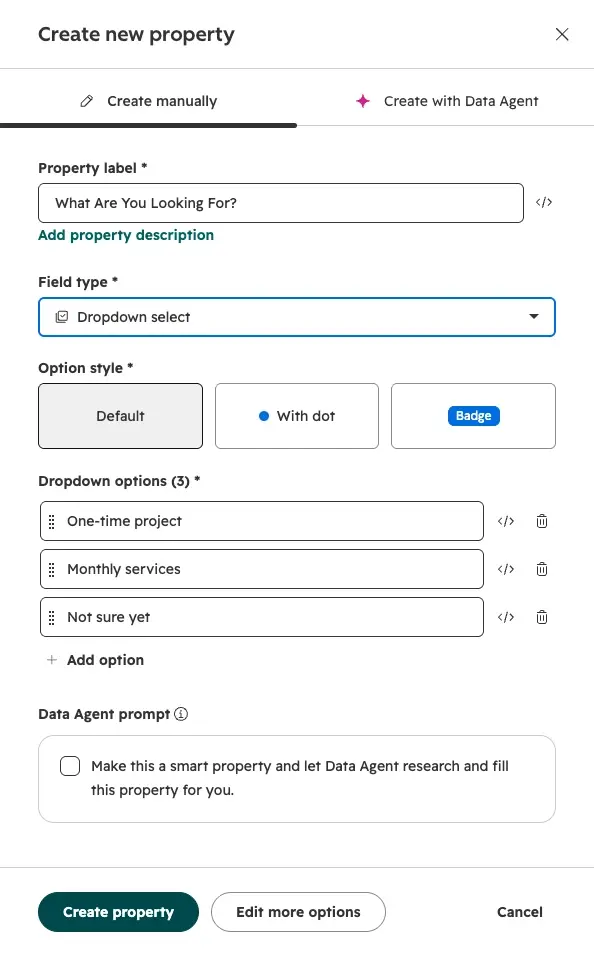
Create the trigger question first, with each answer option added as a fixed option.
Step 2: Create a property for each follow-up question
Next, create a separate property for every follow-up question on your map, using the property type you mapped for each one. If a follow-up question has fixed options, like a budget range, add those options when you create the property. If it's an open question, like a project description, choose a text field type such as Multi-line text, and no options are needed.
To create each follow-up question in HubSpot, repeat the same steps you used to create your trigger questions in Step 1. For each follow-up question, select the property type from your map, and add options only when that property type uses them.
Here's a practical example of what this looks like. The contact form map has one trigger question and six follow-up questions, so the contact form needs seven contact properties in total. Here's the full list of properties created for the contact form:
| Step | Property label | Field type | Options |
|---|---|---|---|
| Step 1 | "What Are You Looking For?" | Dropdown select | One-time project, Monthly services, Not sure yet |
| Step 2 | "Project Timeline" | Dropdown select | Set timeline ranges |
| Step 2 | "Project Budget" | Dropdown select | Set budget ranges |
| Step 2 | "Project Description" | Multi-line text | N/A |
| Step 2 | "Which Monthly Services" | Multiple checkboxes | Your list of monthly services |
| Step 2 | "Monthly Budget" | Dropdown select | Set monthly budget ranges |
| Step 2 | "How Can We Help?" | Multi-line text | N/A |
HubSpot's guide to creating and editing properties covers every field type in detail.
Pro tip: You can technically create properties from inside the form editor while you build the form, but it can create a bad habit. Creating properties on the fly can often lead to duplicate properties, or several slightly different versions of the same question, like three separate "Budget" properties. This is why we recommend creating every property you need before you open the form editor.
How do you add trigger and follow-up questions to a HubSpot form?
To add trigger and follow-up questions to a HubSpot form, open the form in the form editor, drag each property you created onto the form, place each answer option's follow-up questions directly under the trigger question, and make the trigger question required.
Here's how to do this in HubSpot:
- In your HubSpot account, navigate to Marketing > Forms.
- Click Create form in the top right to start a new form, or hover over an existing form and click Edit.
- In the top left of the form editor, click the + add icon.
- Click Properties.
- Search for your trigger question property and drag it onto the form.
- Drag each follow-up question property onto the form directly below the trigger question, keeping each answer option's follow-up questions together.
- Click the trigger question on the form and toggle Required field on.
Where you place the follow-up questions matters. When each trigger question is followed directly by its own follow-up questions, the form reads in a logical order for the visitor, and the conditional logic rules in the next section are easier to build and check. If your form has more than one trigger question, keep each trigger question grouped with its own follow-up questions.
Making the trigger question required matters just as much. Conditional logic decides which follow-up questions to show based on the answer to the trigger question, so if a visitor can skip the trigger question, none of the follow-up questions will ever appear.
In the contact form example, the form keeps its existing First name, Last name, and Email fields. Below them sits "What Are You Looking For?", set to required. Directly under it are the three One-time project follow-up questions, then the two Monthly services follow-up questions, and then "How Can We Help?" for visitors who select Not sure yet.
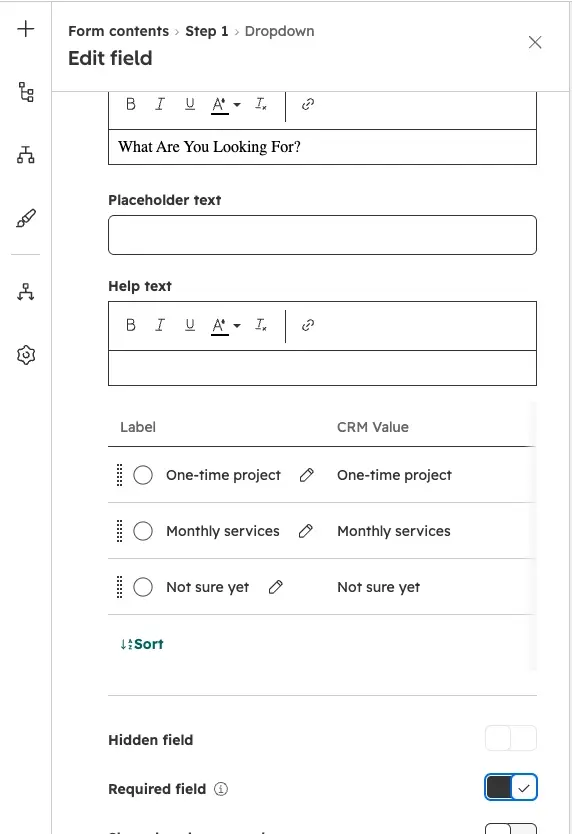
Follow-up questions sit directly under their trigger question, and the trigger question is required.
If you preview the form at this point, you'll notice a problem: every visitor sees every follow-up question, no matter which answer option they select on the trigger question. In the contact form example, a visitor who wants a one-time project still sees the monthly services questions, and a visitor who isn't sure yet sees all of them. The questions are on the form, but nothing tells the form when to show each one. That's the job of conditional logic, and it's the final piece of the build.
How do you add conditional logic to a HubSpot form?
To add conditional logic to a HubSpot form, create one rule in the form editor for each answer option on your trigger question. Each rule tells HubSpot: if a visitor selects this answer option on the trigger question, show the follow-up questions that belong to it. When the form is live, every follow-up question included in a rule stays hidden until a visitor selects the answer option it belongs to, so visitors who select a different answer option never see it.
Here's how to do this in HubSpot:
- In the top left of the form editor, click the logic icon.
- Click Add logic.
- Click the If field dropdown menu and select your trigger question (for example, "What Are You Looking For?").
- Click the operator dropdown menu and select Is any of.
- Click the options dropdown menu and select the answer option this rule is for (for example, One-time project).
- In the Then section, click the dropdown menu and select Show fields.
- Select the follow-up questions that belong to that answer option (for example, "Project Timeline", "Project Budget", and "Project Description").
- Click Save and Activate.
- Repeat these steps for every other answer option on the trigger question, and for each trigger question on your form.
Build a rule for every answer option. A follow-up question that isn't included in any rule has no condition attached to it, so it shows to every visitor. One missing rule puts those follow-up questions back in front of everyone.
In the contact form example, the trigger question has three answer options, so the form needs three separate rules. Here's exactly how each rule is set up in the form editor:
| Rule 1 | ||||
|---|---|---|---|---|
| If field | Operator | Options | Then | Fields to show |
| "What Are You Looking For?" | Is any of | One-time project | Show fields | "Project Timeline", "Project Budget", "Project Description" |
| Rule 2 | ||||
|---|---|---|---|---|
| If field | Operator | Options | Then | Fields to show |
| "What Are You Looking For?" | Is any of | Monthly services | Show fields | "Which Monthly Services", "Monthly Budget" |
| Rule 3 | ||||
|---|---|---|---|---|
| If field | Operator | Options | Then | Fields to show |
| "What Are You Looking For?" | Is any of | Not sure yet | Show fields | "How Can We Help?" |
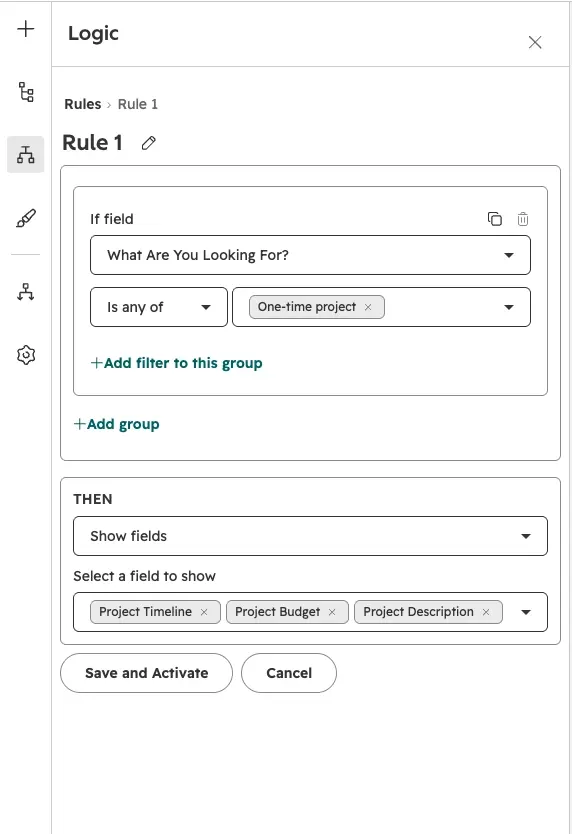
Each rule pairs one answer option with the follow-up questions it should reveal.
Before you publish, click Preview and test each answer option to confirm that only the right follow-up questions appear. When everything works, click Review and update, then click Update to publish your changes. In the example, a visitor who selects One-time project only sees the three project questions, and a visitor who selects Not sure yet only sees the "How Can We Help?" message box. HubSpot's guide to creating and customizing forms covers the other rule actions, like hiding fields and hiding or showing form steps.
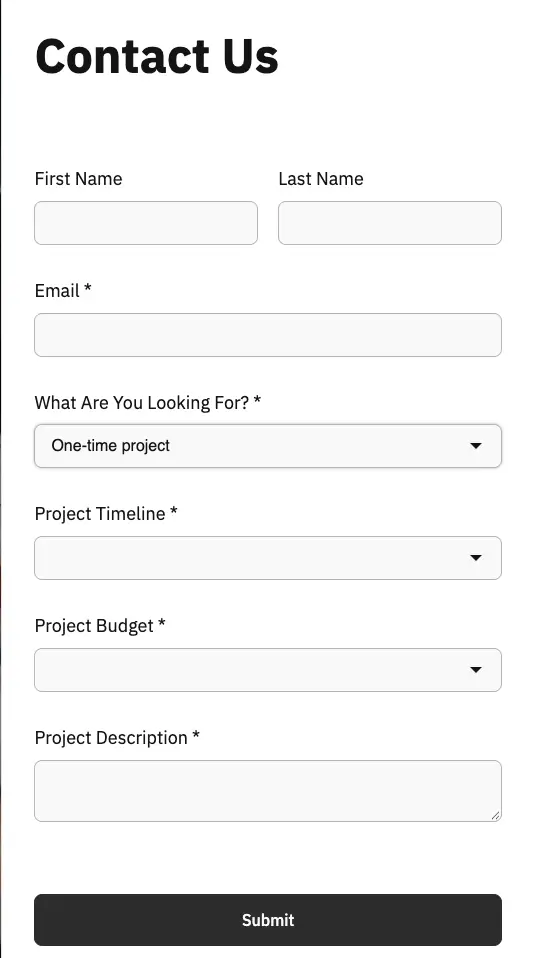
Select an answer option, and only its follow-up questions appear.
Common gotchas
- Plan requirement: At the time of publishing, adding conditional logic to HubSpot forms requires a Marketing Hub or Content Hub Professional or Enterprise subscription. HubSpot is changing its hub structure and pricing, so confirm what your current plan includes before you plan a form around this feature.
- Optional trigger question: If the trigger question isn't set as required, visitors can skip it. When they do, none of the follow-up questions ever appear, and you lose the information the form was built to collect.
- Legacy forms: Forms built in HubSpot's legacy form editor don't use conditional logic rules. They use an older, similar feature called dependent form fields. The steps in this post are for HubSpot's current form editor.
Frequently Asked Questions
What is conditional logic in HubSpot forms?
Conditional logic in HubSpot forms is a set of rules in the form editor that shows or hides fields, text, images, headings, or form steps based on how a visitor answers earlier questions. It lets one form ask different visitors different follow-up questions, so each person only sees the questions that apply to them.
Does conditional logic work with multi-step forms?
Yes, conditional logic works with multi-step forms. In a form with two or more steps, a rule can show or hide an entire step instead of a single field. This is useful when one answer option needs a full page of follow-up questions, like a detailed project intake, and the other answer options don't need that step at all.
How do I ask follow-up questions based on how someone answers a question on my HubSpot form?
To ask follow-up questions based on how someone answers a question on your HubSpot form, use conditional logic in the form editor. First, make the question they answer a property with fixed options, like a dropdown select. Then create one rule for each answer option. Each rule shows the follow-up questions for that answer, so visitors only see what applies.
How many conditional logic rules can one HubSpot form have?
At the time of publishing, a HubSpot form can have up to 200 conditional logic rules, with up to 10 conditions in each rule, according to HubSpot's guide to adding conditional logic to forms. Most forms only need one rule for each answer option on a trigger question, so few forms come close to that limit.
Which HubSpot plans include form conditional logic?
At the time of publishing, conditional logic in HubSpot forms requires a Marketing Hub or Content Hub Professional or Enterprise subscription. HubSpot is changing its hub structure and pricing, so check what your current plan includes in your HubSpot account, or ask your HubSpot rep, before you plan a form around this feature.
.png?width=180&height=180&name=Untitled%20design%20(29).png)
.png?width=30&height=30&name=Untitled%20design%20(29).png)