To plan HubSpot properties, map the data your reports and team's process need, set where and how each is captured, then add only what your portal lacks.
.png?width=46&height=46&name=Untitled%20design%20(29).png) Christian Stroupe
Christian Stroupe
If you're about to create properties in HubSpot, whether you're setting up a new portal or building out a new process, plan them before you build anything. Planning first is what makes HubSpot properties useful to your team in their daily work and accurate in the reports leadership relies on.
Properties are the fields that store information on contacts, companies, deals, and other records in HubSpot. When you plan them, every property you build has a reason to exist: someone on your team needs it to do their work, a report needs it to be accurate, or both. When properties are created one request at a time instead, HubSpot gets flooded with messy data and reports nobody trusts.
This post walks through how to plan HubSpot properties before you build them: who to involve, deciding what data your reports and your team need, mapping where each piece of data gets captured, choosing objects and field types, checking what you already have, and documenting what you build.
Why should you plan HubSpot properties before you build them?
You should plan your HubSpot properties before you build them, because properties added one request at a time end up duplicated, disorganized, and hard to report on.
There will always be times when you need to add a property on the spot, and that's fine. The problem is when that's the whole strategy: whenever someone needs a field, someone creates one. Over time, several properties end up asking the same question, nobody knows which one to fill in, and the data isn't organized in a way your team can work with or your reports can use.
When it comes to the strategy behind creating new properties, here are the most common places teams go wrong:
| Common strategy | What goes wrong |
|---|---|
| No plan, with properties created whenever someone asks | Duplicate properties ask the same question, and nothing is organized for your team's daily work or for reporting. |
| Only creating properties with reporting in mind | You ignore how your team will actually fill in the data during their daily work. That often creates friction and low adoption, so the properties your reports depend on end up empty or inaccurate, and the reporting you prioritized isn't accurate anyway. |
| Only creating properties with your team's process in mind | You don't capture the information leadership needs to make data-driven decisions. When leadership can't see the value in HubSpot, they may start looking at other tools. |
A well-planned HubSpot portal starts with one plan that covers both sides: the data leadership needs to see in reports, and the way your team actually works day to day. The two often pull in different directions, and finding where they fit together is the hard part of planning properties. When they do fit, your team captures the data leadership needs as a natural part of the work they're already doing, so neither side has to give anything up.
Who should be involved in planning HubSpot properties?
Planning HubSpot properties should involve both leadership and the people doing the daily work, with one person responsible for running the planning and making the final calls.
That person can be someone in leadership or someone doing the daily work. A dedicated operations person or an outside HubSpot partner is ideal, because planning and building HubSpot is their actual job. Their role is to gather what leadership needs to see and what the team needs to do their work, then decide which properties to build and where each one gets filled in, so both sides get what they need.
Start with leadership. Ask them:
- What does success look like for the business?
- Which numbers do you want to see on a dashboard?
- Which decisions do you want to make from that data?
Then go to the people doing the work every day, like sales reps, marketers, and account managers. Ask them:
- What would make your work easier?
- What do you want to see on a record when you open it?
- How would it be easiest for you to fill in the data the business needs?
For example, a sales director may want to see new customers by state, pipeline value by service, and close rates by company size, while the sales reps want new leads assigned to the right rep automatically and want to see what each lead is looking for before the first call. The properties you plan need to deliver both.
How do you plan HubSpot properties?
To plan your HubSpot properties, follow these seven steps:
- Define the reports and dashboards you need.
- Map your process and where each piece of data is captured.
- Choose an object and a field type for each new property.
- Check which properties already exist in your portal.
- Reuse, consolidate, or archive existing properties.
- Create the new properties you need.
- Document every property you create, so future changes start from what was built.
Steps 1 and 2 happen together. The reports you want shape what your process has to capture, and walking through your process often changes how a report's data can realistically be collected. Expect to go back and forth between the two until they fit.
Don't create any properties until step 6, once you've checked what already exists. Planning outside the system first keeps your planning focused on what your business needs, instead of on what's already in your portal or what HubSpot's settings happen to offer. The sections below cover each step in more detail.
How do you decide what data your HubSpot reports and dashboards need?
To decide what data your HubSpot reports and dashboards need, write down in plain English the questions leadership wants answered, then list the data each question depends on.
Start with the numbers leadership would look at to know whether the business is on track, like activity numbers for your team, conversion rates between pipeline stages, pipeline value, or a revenue forecast. Write each one as a question a dashboard answers, like "What's our pipeline value for each service?", then write down the data that question depends on.
Don't name properties or pick field types yet. A plain-English list is easier for leadership and the team to react to, and it keeps the conversation on what the business needs to know instead of how HubSpot stores it.
Here's a practical example of what this looks like. A company that sells several services wants its dashboards to show where its customers are, which services fill the pipeline, which company sizes it wins most often, and why it loses deals. Here are those needs written as report questions, with the data each one depends on:
| Report question | Data it depends on |
|---|---|
| How many new customers do we win in each state? | The state of every customer, saved the same way every time |
| What's the pipeline value for each service we sell? | The service and the amount on every open deal |
| Which company sizes close at the highest rate? | The size of every company with a deal |
| Why are we losing deals? | A reason on every lost deal, picked from a set list |
Every item in the right-hand column is data your process will have to capture at some point. Deciding exactly where and how is what turns this list into a plan.
How do you map where each HubSpot property gets captured?
To map where each HubSpot property gets captured, walk through your process step by step and mark the point where each piece of data becomes known.
Start at the first touchpoint, like a form submission, and follow a record all the way through your process to a closed deal, and beyond that if your team tracks onboarding. At each step, answer three questions:
- What does the team need to see at this step?
- What information becomes known at this step?
- Which report or dashboard does that information feed?
Then decide who or what fills in each piece of data. There are three common sources:
- The visitor: someone answers a question on a form, ideally from a set list of options.
- Your team: a rep fills in a property as part of a step they're already taking, like moving a deal to its next stage.
- The system: HubSpot fills in the value for you, for example through data enrichment, which can fill in company details like industry and employee range, or through a workflow that copies a value from one record to another.
Never require data before anyone could reasonably know it. If a property is required too early, people guess, and a guessed value looks just as complete in a report as a real one.
This is where your reports and your process have to fit together. When a report needs data your process doesn't capture yet, find a way to capture it without adding work for your team: ask for it at a different step, let HubSpot fill it in, or ask the question in a simpler format, like a dropdown of ranges instead of an exact number.
Here's a practical example of what this looks like. A company whose sales reps each cover a region has one contact form on its website with a name, an email address, and a single message box. A sales manager reads every submission and decides which rep should get it, and none of leadership's questions about customers by state, pipeline by service, or close rates by company size can be answered, because the form doesn't capture that data in a format a report can use.
Here's how that company could map each need to a property, and how each property gets captured:
| Plain-English need | Property | How it's captured |
|---|---|---|
| Route each lead to the rep who covers their state, and report customers by state | "State" (contact property, dropdown select) | The visitor answers it on the contact form, where it's required |
| See which service each lead wants before the first call | "Service Interest" (contact property, dropdown select) | The visitor answers it on the contact form |
| Report pipeline value by service | "Service Interest" (deal property, dropdown select) | A workflow copies it from the contact when the deal is created |
| Help reps prioritize deals by when each prospect plans to decide | "Decision Timeline" (deal property, dropdown select) | The rep fills it in, and it's required when the deal moves past the discovery stage |
| Report close rates by company size | "Employee range" (default company property) | HubSpot data enrichment fills it in automatically |
Pro tip: Structured properties have a ripple effect. When one property captures a set value, it can serve your process and your reporting at the same time. For example, a required "State" dropdown on a contact form lets a workflow route each lead to the rep who covers that state, and it also gives leadership a customers by state report, with no extra data entry from anyone. Whenever one structured property can feed more than one need, build it that way.
How do you choose an object and field type for a HubSpot property?
To choose an object and field type for a HubSpot property, decide which object the property belongs to, then how its data should be stored. In HubSpot's property settings, the Select an object dropdown sets which object you're creating a property for, like contacts, companies, or deals. When you create the property, the Field type dropdown lists every field type you can choose from.
How to choose an object
Create each property inside the object the information describes: contact properties for the person, company properties for the business, and deal properties for the sale.
Properties in HubSpot are separate for each object. A contact property only exists on contact records, so if you need the same information on a deal, you need a separate deal property, even if it asks the exact same question with the exact same options.
When you need the same information on two objects, there are two ways to set it up:
| Option | How it works | Use it when |
|---|---|---|
| Clone the property and copy the value with a workflow | You create a matching property inside the second object, and a workflow copies the value across when something happens, like a deal being created. | The value should start out matching, but your team needs to be able to edit it on the second record afterward. |
| Create a sync property | A property inside the second object pulls its value from an associated record and updates automatically whenever the original value changes. | The value should always mirror the original and never be edited on the second record. |
For example, a "Service Interest" contact property that visitors answer on a contact form may also be needed on every deal for a pipeline by service report. If reps sometimes need to correct the answer after a call, a cloned deal property with a workflow fits better than a sync property. The same pattern works later in the process. If you use HubSpot's Services object to manage customer onboarding, a deal property the rep fills in can be copied to the new service record when the deal closes, so the onboarding team starts with what sales already learned.
How to choose a field type
If a property's answer comes from a set list, use a fixed-option property, such as a dropdown select, radio select, or multiple checkboxes. If the answer needs to be typed out, such as a name or a description, use a free-text property, such as single-line or multi-line text.
Use fixed-option properties whenever you can. They give you the highest-quality data you can have, because every answer is saved the same way, so reports group records correctly instead of splitting one answer into several spellings. They also unlock automation: workflows can branch on them, records can be routed by them, and forms can use conditional logic to show different follow-up questions depending on the answer someone selects.
Fixed-option properties only work when the options are accurate. Each option should be clear, and no two options should overlap, so everyone picks the same option for the same answer.
Pro tip: Sometimes a set list covers most answers, but some situations need more context, like the details behind why a deal was lost. In those cases, add an Other option to the list, then set up conditional logic so that when someone selects Other, a free-text field appears for them to explain. Your reports still group every answer cleanly, and nobody is forced to pick an option that isn't true.
Free text still has a place. Some answers are explanations, like a description of a project, and forcing them into a list loses the detail that makes them useful. Use free text for those answers, and use it sparingly.
Here are some common kinds of answers, and a field type to consider for each:
| If the answer is... | A field type to consider |
|---|---|
| One choice from a set list, like a state or a service | Dropdown select or radio select |
| Several choices from a set list, like every service a lead is interested in | Multiple checkboxes |
| Yes or no | Single checkbox |
| A number, like a budget or a headcount | Number |
| A date, like a target start date | Date picker |
| An explanation that can't fit a list, like a project description | Multi-line text |
HubSpot's guide to property field types explains how each fixed-option type behaves and the limits on each one.
How do you check which HubSpot properties you already have?
To check which HubSpot properties you already have, compare your finished plan against your portal's default and custom properties before you create anything new.
Check your portal only after you've decided what data your business needs, where each piece of data gets captured, and which object and field type each property needs. Looking at your portal first anchors your planning to how things work today. Looking afterward means you're checking existing properties against what your business actually needs.
You can search for properties one at a time in your property settings, but the easiest way to compare everything is to put every property in your portal next to your plan. Here's how to export all your properties in HubSpot:
- Click the settings icon in the top navigation bar.
- In the left sidebar, under Data Management, click Properties.
- In the upper right, click Export all properties.
- Select the objects to include (for example, Contacts, Companies, and Deals).
- Choose a file format and click Export.
HubSpot sends you a download link by email and in your notification center. The export lists each property's field type, group, and options, along with where it's used and its fill rate, which is the percentage of records that have a value.
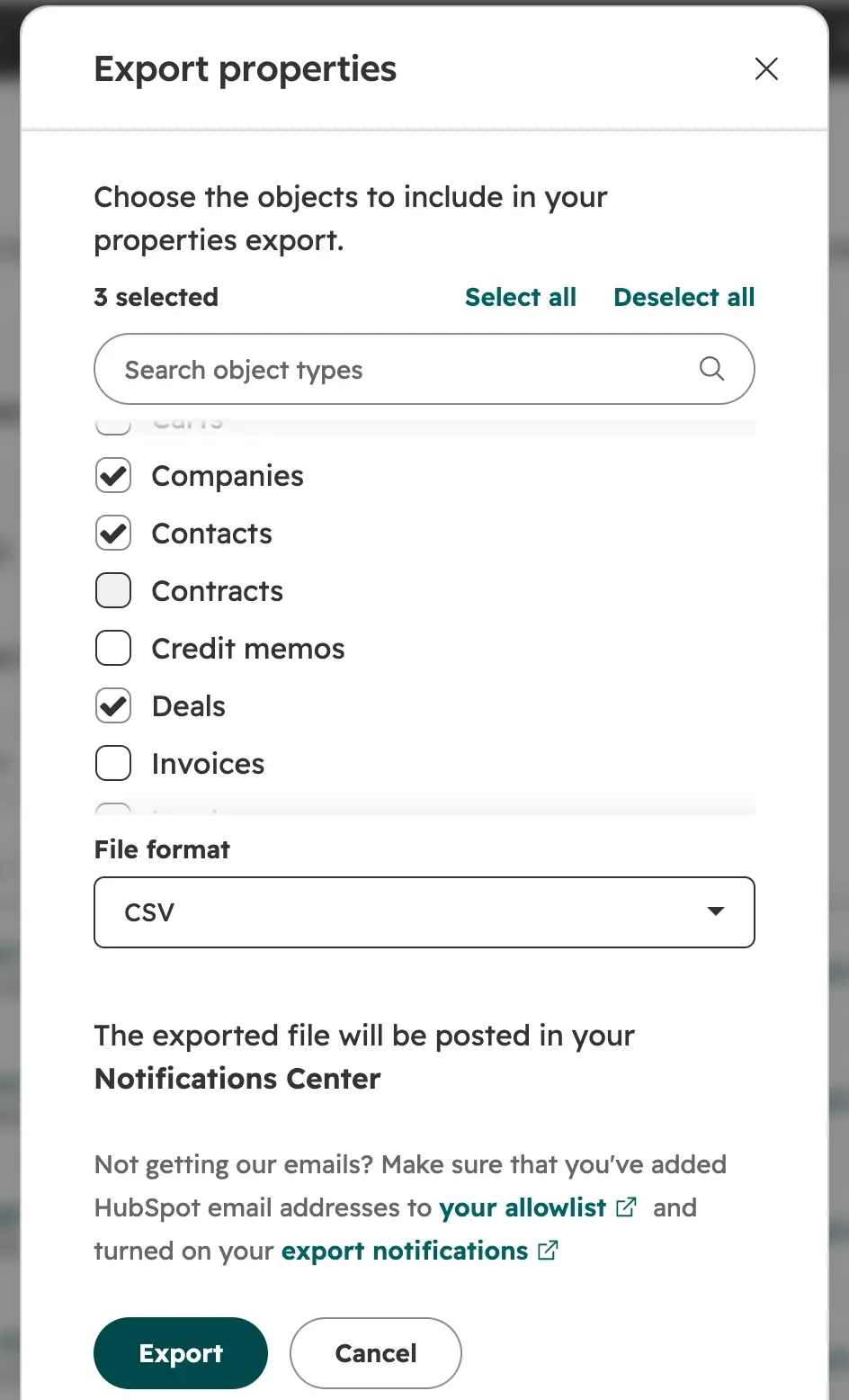
Put your whole portal next to your plan before you build anything.
Then go through your plan one property at a time and compare it against the export, so you know which existing properties already capture what you need.
How do you decide which HubSpot properties to reuse, consolidate, or archive?
To decide which HubSpot properties to reuse, consolidate, or archive, compare each existing property against a list of the properties your business needs: reuse what already captures the data you need, consolidate properties that ask the same question, and archive only what you're sure you won't need.
Don't create new properties blindly. Every property you add is one more field your team has to look past, so reuse and consolidate before you add anything, and only create what your business truly needs. Properties that are variations of the same question, like three different "Budget" properties, should be consolidated into one, because as long as all of them exist, people keep filling in different ones.
Here's what to do with what you find:
| What you find | What to do |
|---|---|
| A HubSpot default property already captures the data the way your business needs it | Reuse the default property. |
| A custom property captures the data but needs a small change, like a missing option | Update that property instead of creating a new one. |
| Several properties ask the same question | Consolidate them into one property. |
| A default property captures the data in a way that won't work, like free text you need as a set list | Create a custom property to use instead, and remove the default one from your forms and record views. |
| A property isn't on your list, but holds unique data you may need later | Keep it, but remove it from record views, forms, import templates, and workflows. |
| A property isn't on your list, and holds nothing you'll need | Archive it. |
| Nothing captures the data | Create a new property. |
You don't have to delete every property that isn't on your list. What matters is that it's out of your process, so your team only sees the properties that matter. Keep in mind that archiving isn't the same as keeping. HubSpot permanently deletes archived properties after 90 days, so only archive a property you're sure you won't need.
How do you create new HubSpot properties?
To create new HubSpot properties, follow these three steps:
- Pick one naming convention.
- Create each new property.
- Clone or sync properties you need in more than one object.
Step 1: Pick one naming convention
Before you create anything, pick one naming convention and use it on every property. Which convention you choose matters less than using it consistently. When properties are named in different ways, people can't tell which one to use, and they create new ones that ask the same question. Here are a few naming conventions you could adopt, each shown on the same property:
| Convention | Example |
|---|---|
| Short labels that read cleanly on a record | "Service" |
| Labels written as the full question a form asks | "What Service Are You Interested In?" |
| Internal names that match the label | "Service Interest" with the internal name service_interest |
Get the name right when you create the property. You can change a property's label later, but its internal name, which integrations and the API use, can't be edited after the property is created.
Step 2: Create each new property
Create each property with the object, field type, and options you decided on when planning. Here's how to create a property in HubSpot:
- Click the settings icon in the top navigation bar.
- In the left sidebar, under Data Management, click Properties.
- Click the Select an object dropdown and choose the object the property belongs to (for example, Contact properties).
- Click Create property.
- In the Property label field, enter the property's name (for example, "Service Interest").
- Click the Field type dropdown and select the field type you decided on (for example, Dropdown select).
- If the property uses fixed options, add each option you decided on, including Other if you need it.
- Click Create property.
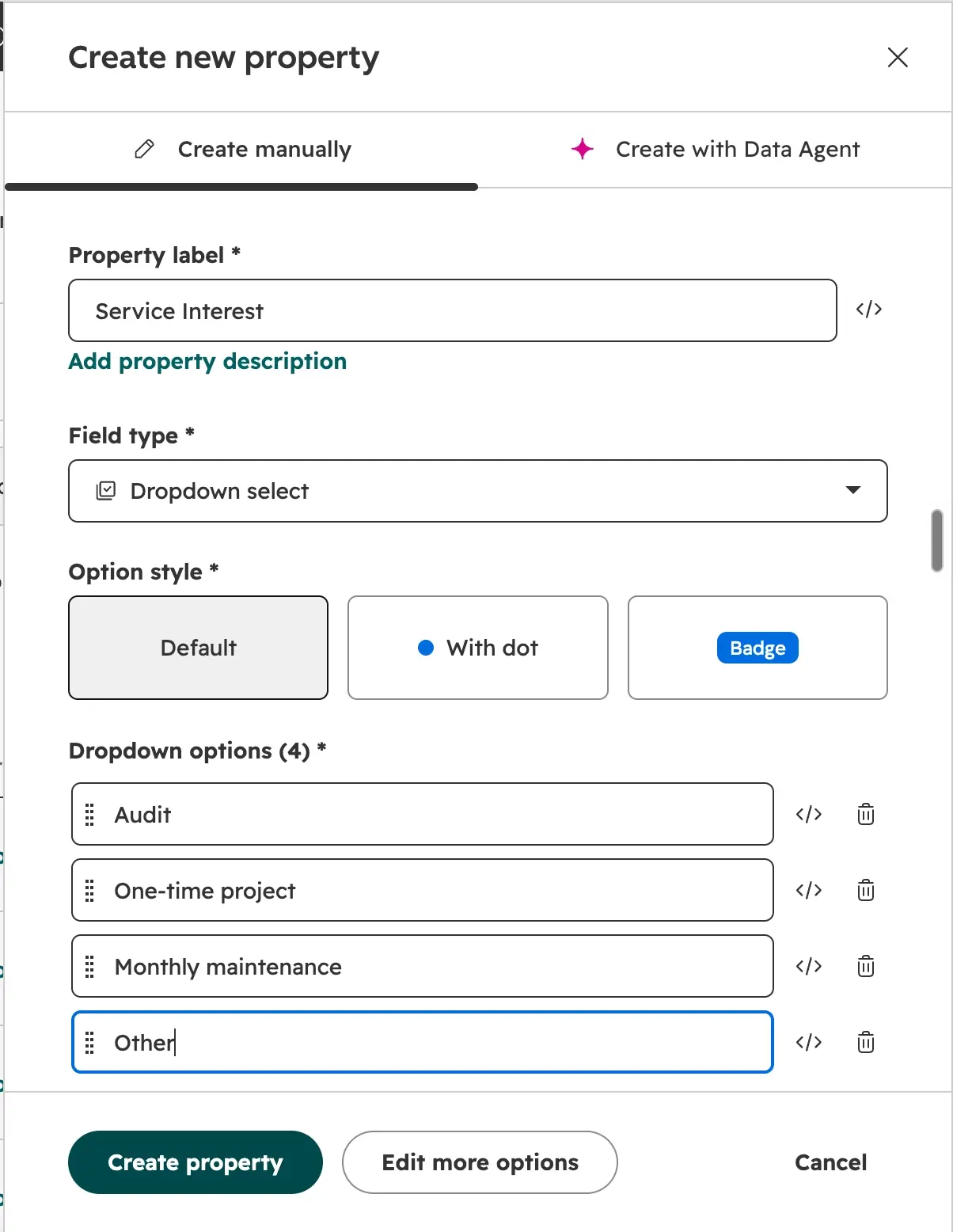
A set list of answers, with Other for anything the list doesn't cover.
Step 3: Clone or sync properties you need in more than one object
Cloning keeps the same field type and options, which matters because a workflow can only copy a value between two fixed-option properties when both are the same type and share the same options. Here's how to clone a property into another object in HubSpot:
- Click the settings icon in the top navigation bar.
- In the left sidebar, under Data Management, click Properties.
- Click the Select an object dropdown and choose the object the property belongs to now (for example, Contact properties).
- Hover over the property, click the More dropdown, and select Clone.
- Change the object type to the object you're creating the property for (for example, Deal).
- Click Create.
HubSpot doesn't let you clone its default properties, so this works for custom properties only.
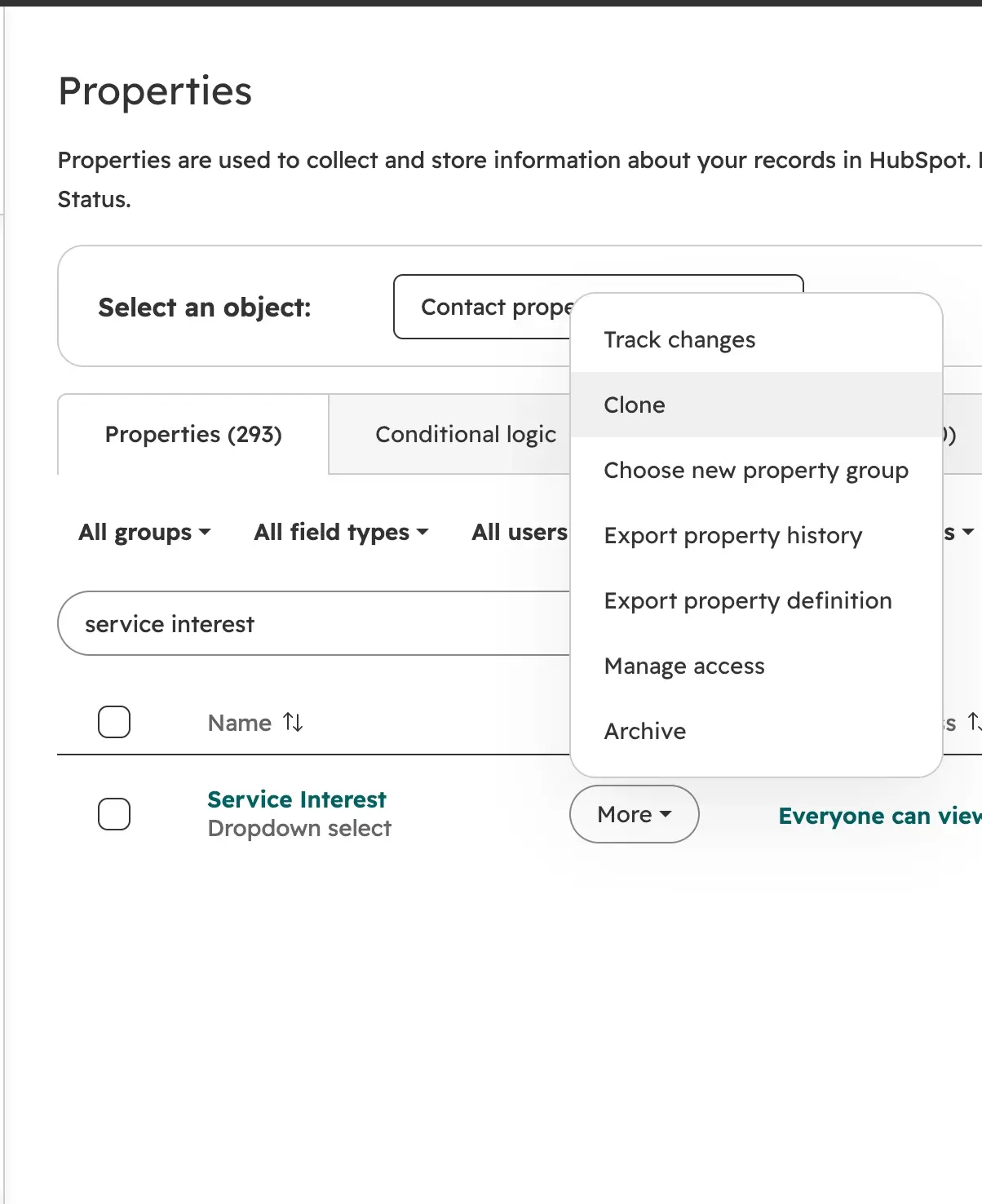
Cloning copies a property's setup, so you don't rebuild it from scratch.
A sync property works differently. It pulls its value from an associated record, like a contact associated with a deal, and updates automatically whenever that value changes. Sync property values are read only and only copy in one direction. HubSpot's guide to creating sync properties covers how they work in more detail. Here's how to create a sync property in HubSpot:
- Click the settings icon in the top navigation bar.
- In the left sidebar, under Data Management, click Properties.
- Click the Select an object dropdown and choose the object the synced value should appear on (for example, Deal properties).
- Click Create property.
- In the Property label field, enter the property's name.
- Click the Field type dropdown and select Property sync.
- Choose the associated record type to pull the value from (for example, Contact).
- Choose the associated record property (for example, "Service Interest").
- If the two objects use association labels, choose whether to sync from all association labels or only specific ones (for example, Primary).
- Choose which record to sync from: First created or Most recently created.
- Click Create.
How do you document your HubSpot properties?
To document your HubSpot properties, write down every property you built, what it's for, and where it gets captured, somewhere the whole team can find it.
How you document it matters less than making sure it's documented. Where most teams go wrong is that the person who creates the properties never documents them, so the only record of what was built and why is in that person's head. Then that person leaves the company, changes roles, or stops working in HubSpot, and nobody understands what was built, why it was built, or why it's set up the way it is. Everyone gets nervous about touching anything that's already configured, so when they need a field, they create a new one instead. That's a common way a portal fills up with duplicate properties: nobody knows what already exists or why.
Once you've built all your properties, document the finished version: what each property is, why it was built, which object it was created in, and where it gets captured.
Two good ways to document your properties are a data dictionary and property groups in HubSpot, and doing both would be ideal.
A data dictionary is a spreadsheet with one row for each property. Here are the columns a data dictionary usually includes, with an example property filled in:
| Column | What it records | Example |
|---|---|---|
| Property | The property's name | "State" |
| Object | The record it lives on | Contact |
| Field type | How the data is stored | Dropdown select |
| Where it's captured | The step where it's filled in, and who or what fills it in | Contact form, required |
| What it feeds | The reports, workflows, or views that use it | Lead assignment and customers by state report |
Property groups document the build inside HubSpot. Groups sort related properties together in your property settings, so you can put everything built for one version of your process in its own group, like "Sales Process V1". The next time you change the process, you can see exactly what was built last time and what needs to change.
Here's how to create a property group in HubSpot:
- Click the settings icon in the top navigation bar.
- In the left sidebar, under Data Management, click Properties.
- Click the Select an object dropdown and choose the object (for example, Deal properties).
- Click the Groups tab.
- Click Create group.
- Enter the group's name (for example, "Sales Process V1") and click Save.
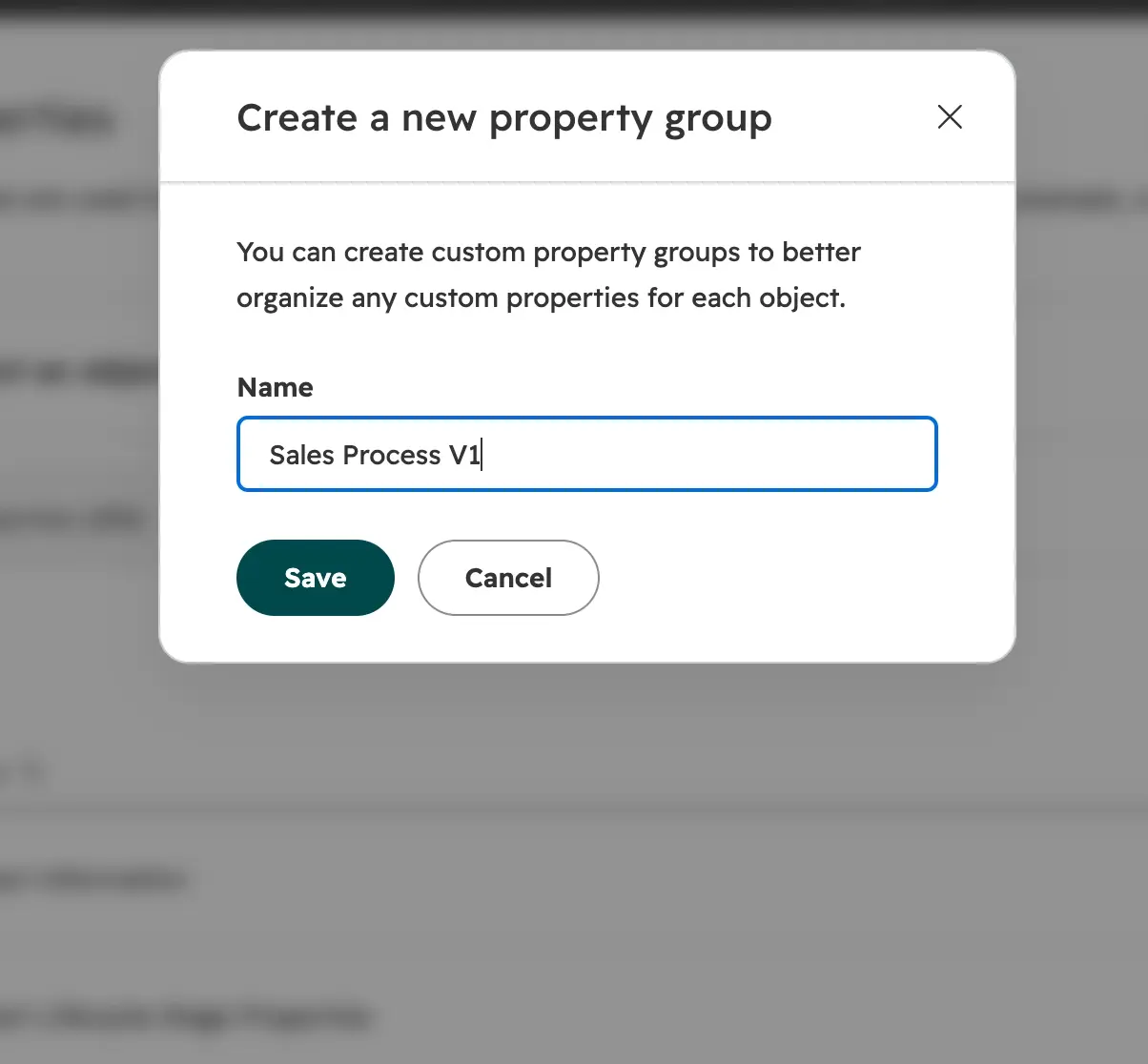
Group what you build, so the next version starts from what's already there.
Once the group exists, add each new property to it as you create it. After you click Create property, click Edit more options, then select your group from the Group dropdown. If you've already created the properties, you can select them on the Properties tab, click Add to group, choose your group, and click Save.
Common gotchas
- Some decisions are permanent: A property's internal name and object type can't be changed after it's created, and HubSpot won't let you change a property's field type while it's used in tools like forms or workflows. Getting these wrong means creating a new property and moving the data over, so settle them before you create the property.
- Archiving is deleting: Archived properties are permanently deleted after 90 days. If a property holds data you might need, keep it in HubSpot and remove it from your team's record views, forms, and import templates instead.
- Plan requirements: At the time of publishing, sync properties, workflows, conditional logic on properties, and conditional logic on forms require a Professional or Enterprise subscription. HubSpot is actively changing its pricing and plan structure, so these requirements may change. Check what your current plan includes before you plan around a feature.
Frequently Asked Questions
What is a HubSpot property?
A HubSpot property is a field that stores one piece of information on a record, like a contact's email address or a deal's amount. HubSpot includes default properties for each object, and you can create custom properties for anything else your business tracks. Properties are separate for each object, so a contact property doesn't appear on deals.
How do I plan HubSpot properties before I build them?
To plan HubSpot properties, start with the reports and dashboards your business needs, then walk through your process and decide where each piece of data gets captured and who fills it in. Choose a field type and object for each property, compare what you need to what's already in HubSpot, then document everything you build.
Should a HubSpot property be a dropdown or a text field?
A HubSpot property should be a dropdown, or another fixed-option property, whenever the answer can come from a set list. Use fixed-option properties whenever you can, because they lead to more accurate reports and more reliable automation. Use a text field only when the answer has to be typed out, like a name or a project description.
Can you change a HubSpot property's internal name after it's created?
No, you can't change a HubSpot property's internal name after the property is created. Integrations and the API use the internal name to find the property. You can change the property's label at any time, but the internal name stays the same, so check it carefully before you create the property.
How do I copy a property from one object to another in HubSpot?
There are two ways to copy a property from one object to another in HubSpot. You can clone the property into the second object and use a workflow to copy its value, which lets your team edit it on the second record later. Or you can create a sync property, which mirrors the original value automatically but is read only.
.png?width=180&height=180&name=Untitled%20design%20(29).png)
.png?width=30&height=30&name=Untitled%20design%20(29).png)